

Set up from the Meilisearch Cloud dashboard
Open your project in the Meilisearch Cloud dashboard and select the Search rules tab.Turn on search rules
Click Enable Search Rules. Your project can now store rules and apply them at search time.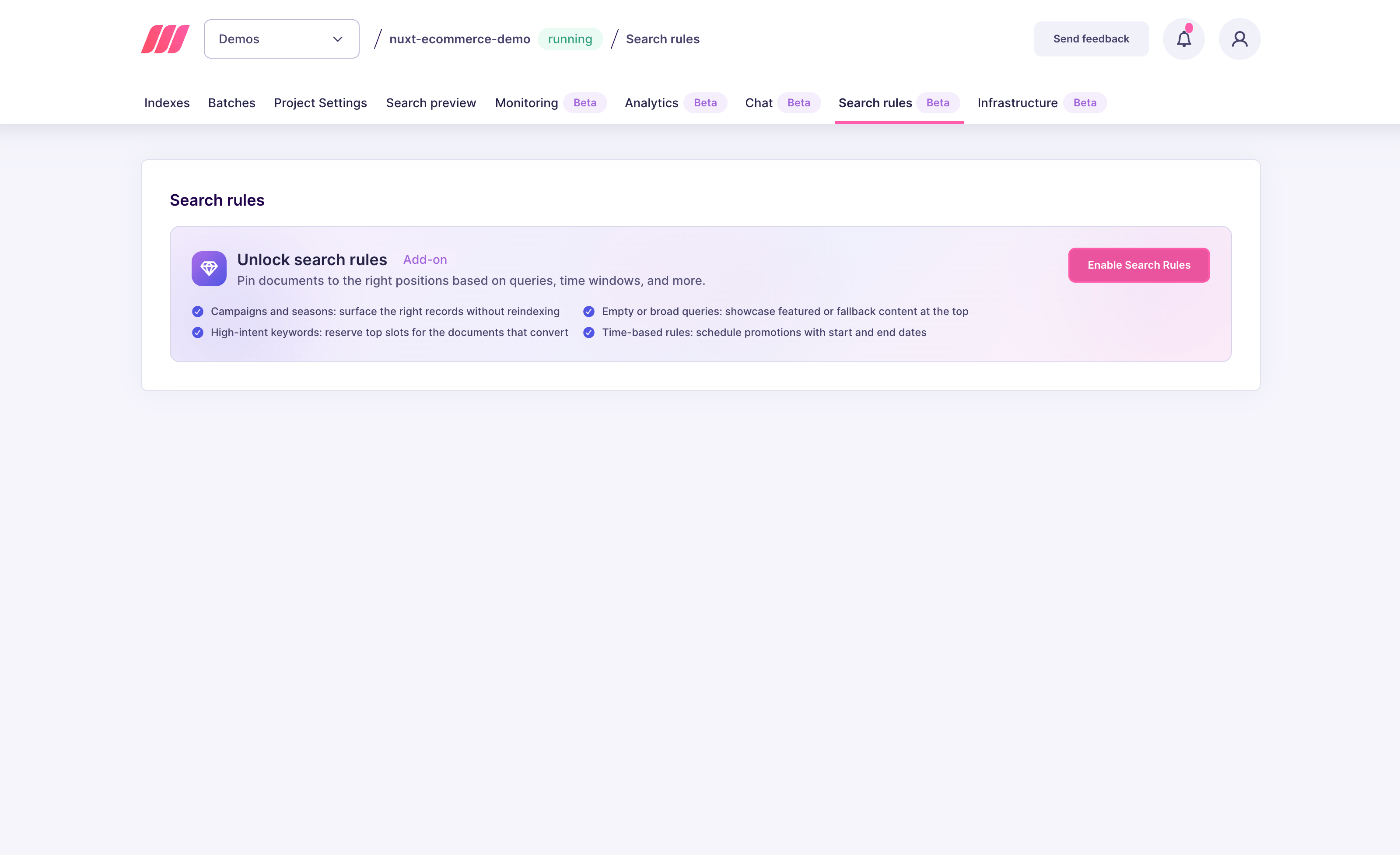
Create a new rule
Click New rule to open the rule editor.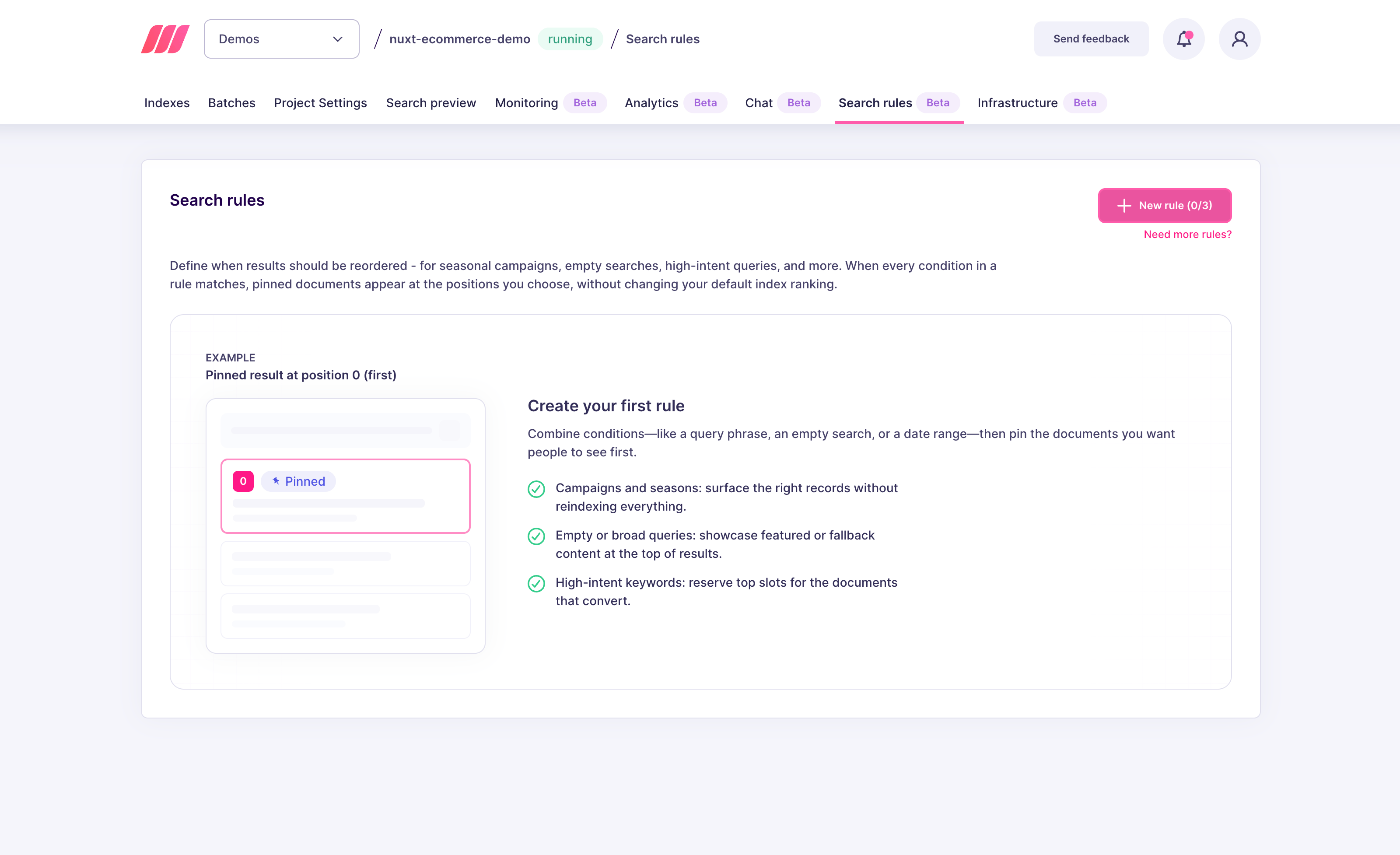
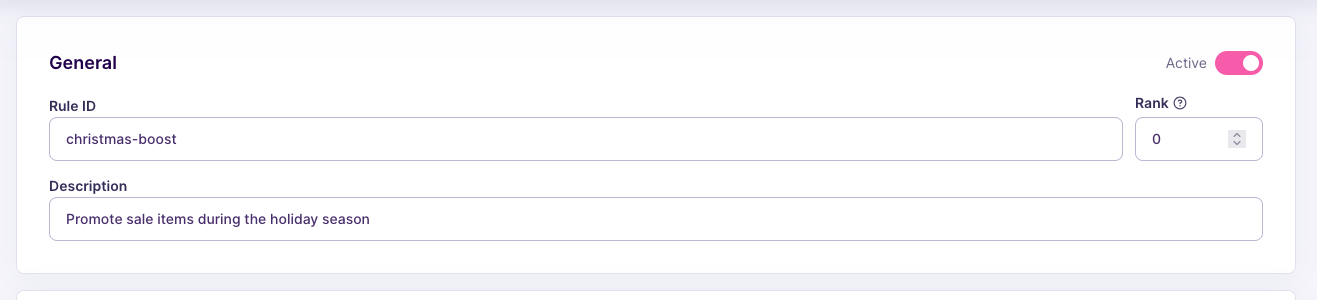
Fill in the general information
Choose the action
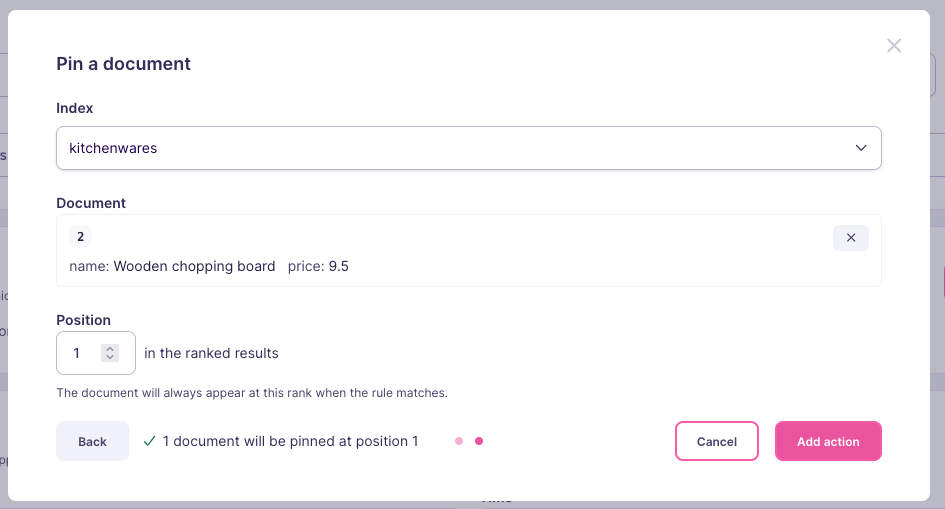
The Actions block decides what the rule does to your results.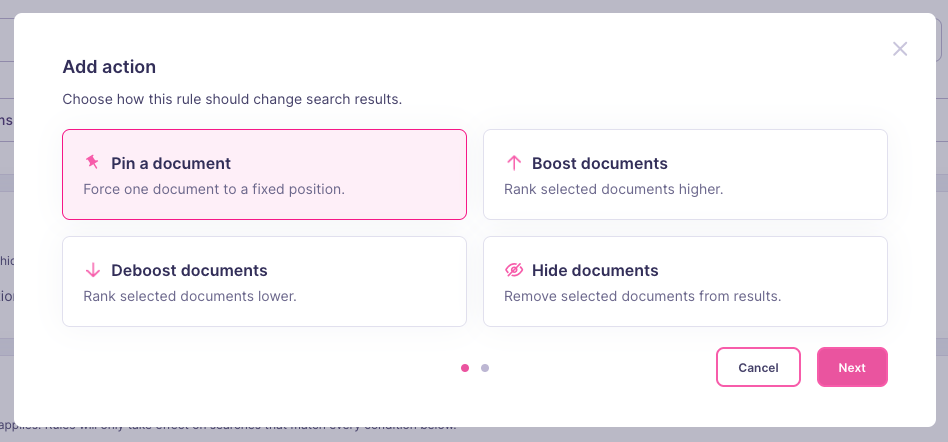
- Index: the index that holds the document you want to promote. The rule then applies only to searches on this index.
- Document: the document itself, selected by its primary key. Meilisearch promotes this exact document and no other one, even if similar documents exist.
- Position: the rank the document takes in the results, starting at
1for the first result. It stays at this rank every time the rule matches, even when it does not match what the user typed.

Choose the conditions
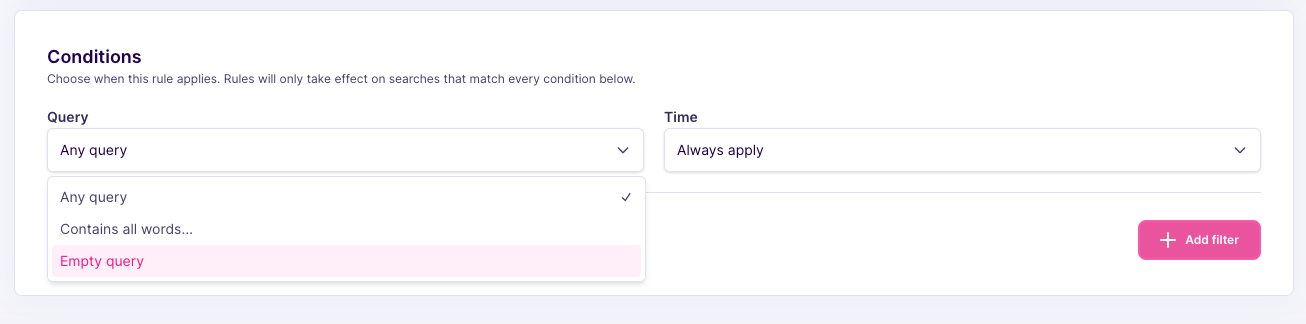
The Conditions block decides when the rule runs. A search must match every condition for the rule to take effect. With the default values, the rule applies to all searches. For this first rule, set Query toEmpty query and leave the other conditions as they are.
Save the rule
The bar at the bottom of the editor recaps what your rule contains.
Review and manage your rules
The Search rules tab lists every rule with its conditions, actions, rank, and last update. Search the list by rule ID or description, use the row toggle to pause a rule without deleting it, or the icons on the right to edit or remove it.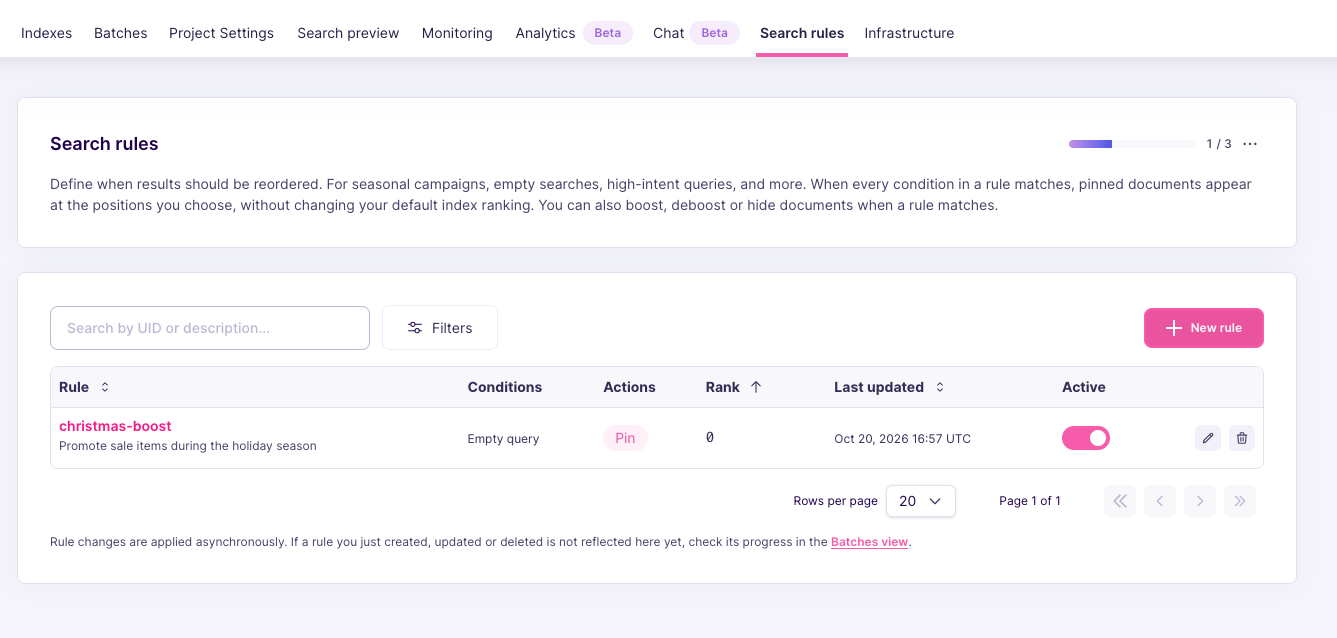
Set up on a self-hosted instance
Turn on search rules
/dynamic-search-rules routes reject your requests and stored rules do not apply at search time.
Create a rule
support index with a query containing the word invoice, the document billing-workspace-overview appears at the first position of the results.
- The rule identifier comes from the URL, here
invoice-help. The body does not contain it. precedencedecides which rule wins when several rules match the same search. The lowest number wins.conditions.query.wordsmakes the rule run only when every word it contains appears in the query, in any order.actions.pin.indexUidlimits the rule to searches on thesupportindex. Without it, the rule applies to any index that contains a document with this ID.actions.pin.positioncounts from0, so0is the first result. The dashboard displays the same slot as position1.
taskUid, because creating a rule is an asynchronous operation. The rule only applies to searches once this task reaches the succeeded status. To follow its progress, pass the taskUid to the task API.
For the full list of conditions and actions a rule accepts, see the search rules API reference.
Check the stored rule
Run a search
billing-workspace-overview comes back first, followed by your organic results. If the document does not exist, or if the search filters exclude it, Meilisearch drops the pin and returns the organic results only.
Next steps
Boost documents
Rank a selection of documents higher during a campaign
Hide documents
Remove documents from the results without reindexing
How search rules work
See how Meilisearch builds the final result set
API reference
Endpoints, rule fields, and update behavior