1. Create a Meilisearch project
Create a project in the Meilisearch Cloud dashboard. Check out our getting started guide for step-by-step instructions. If you prefer to use the self-hosted version of Meilisearch, you can follow the quick start tutorial.2. Create a Rails app
Ensure your environment uses at least Ruby 2.7.0 and Rails 6.1.3. Install the meilisearch-rails gem
Navigate to your Rails app and install themeilisearch-rails gem.
4. Add your Meilisearch credentials
Run the following command to create aconfig/initializers/meilisearch.rb file.
5. Generate the model and run the database migration
Create an exampleArticle model and generate the migration files.
6. Index your model into Meilisearch
Include theMeiliSearch::Rails module and the meilisearch block.
Article index and adds search capabilities to your Article model.
Once configured, meilisearch-rails automatically syncs your table data with your Meilisearch instance.
7. Create new records in the database
Use the Rails console to create new entries in the database.8. Start searching
Backend search
The backend search returns ORM-compliant objects reloaded from your database.Frontend search
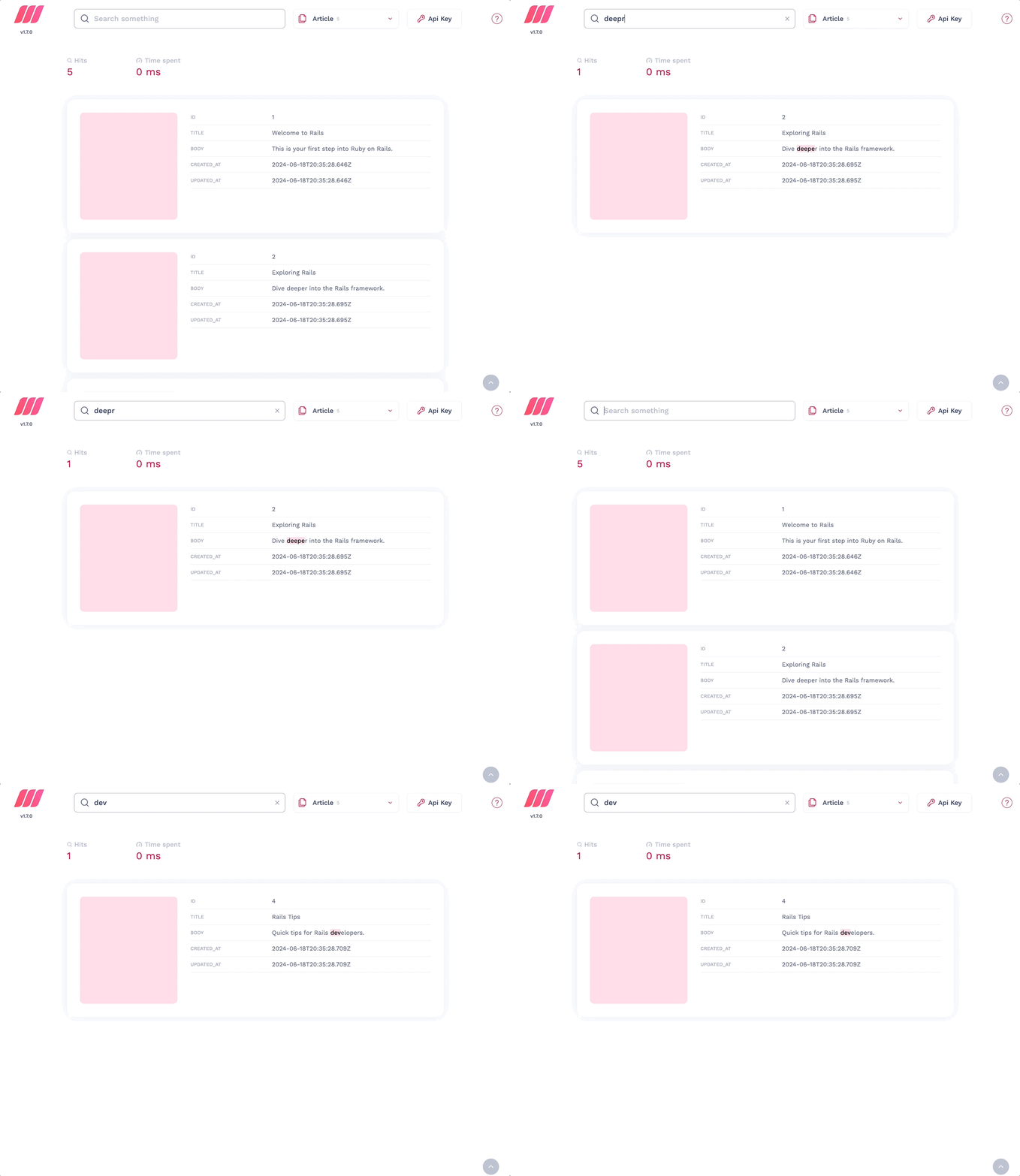
For testing purposes, you can explore the records using our built-in search preview.