1. Create a Vue application
Run the npm create tool to install base dependencies and create your app folder structure.
2. Install the library of search components
Navigate to your Vue app and install vue-instantsearch, @meilisearch/instant-meilisearch, and instantsearch.css.
3. Add InstantSearch
Include InstantSearch into main.js to include the Vue InstantSearch library.
4. Initialize the search client
Add the code below to the App.vue file.
These URL and API key point to a public Meilisearch instance that contains data from Steam video games.
The ais-instant-search widget is the mandatory wrapper that allows you to configure your search. It takes two props: the search-client and the index-name.
5. Add a search bar and list search results
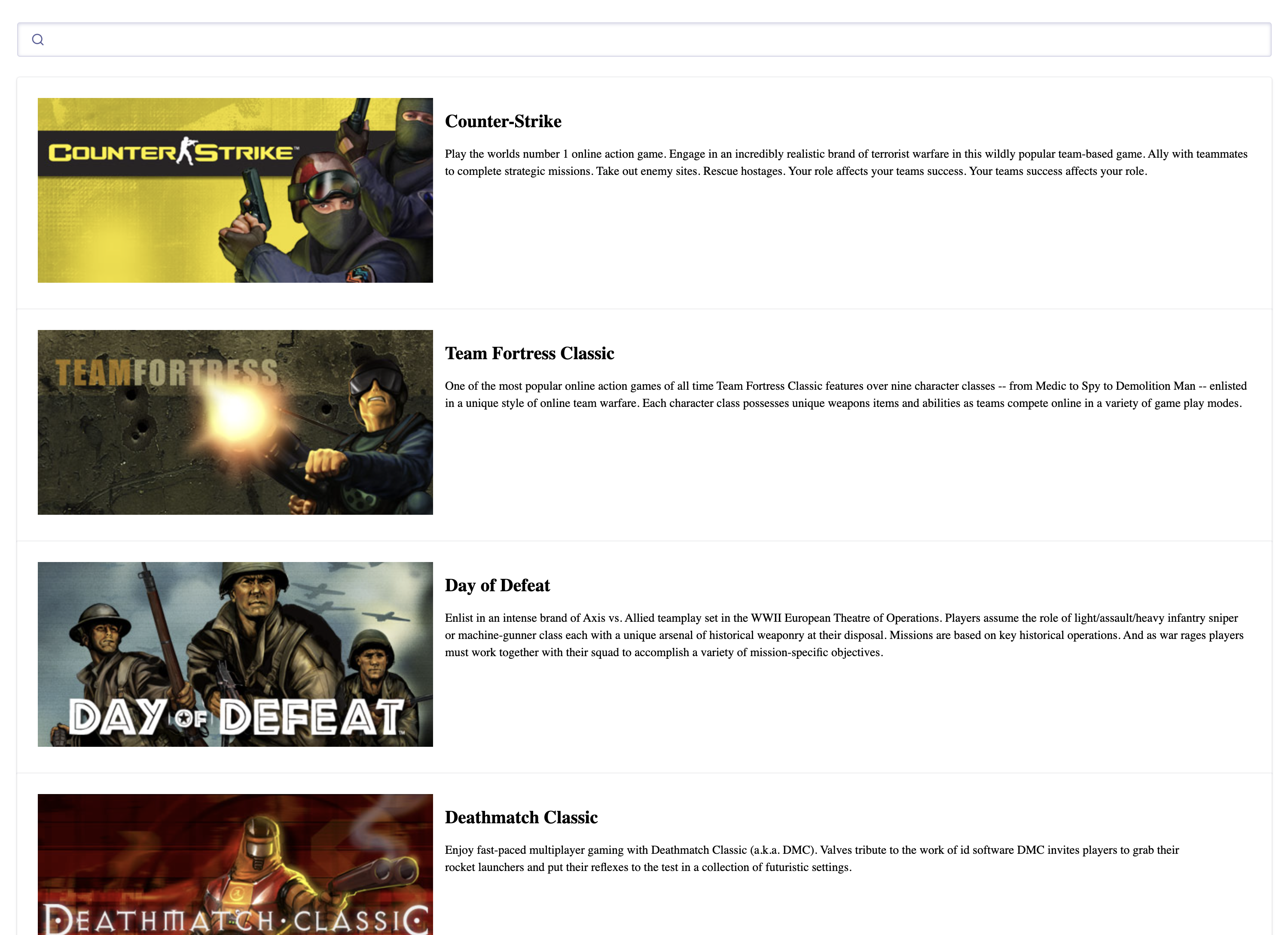
Add the ais-search-box and ais-hits widgets inside the ais-instant-search wrapper widget.
Import the CSS library to style the search components.
Use the slot directive to customize how each search result is rendered.
Use the following CSS classes to add custom styles to your components:
.ais-InstantSearch, .ais-SearchBox, .ais-InfiniteHits-list, .ais-InfiniteHits-item
6. Start the app and search as you type
Start the app by running:
Now open your browser, navigate to your Vue app URL (e.g., localhost:5173), and start searching.
Encountering issues? Check out the code in action in our live demo!
Next steps
Want to search through your own data? Create a project in the Meilisearch Dashboard. Check out our getting started guide for step-by-step instructions.