

Example scenario
Your e-commerce team runs a summer sale from June 1 to June 30. During that window, whenever a user’s query contains “summer sale”, you want to pin thesummer-sale-landing-page document (in the products index) at the top of the results. Outside that window, the rule must not fire at all, even if the query still contains “summer sale”.
One rule with two conditions (query + time) and one pin action covers this.
Set up from the Meilisearch Cloud dashboard
Open your project in the Meilisearch Cloud dashboard and select the Search rules tab.1. Create a new rule
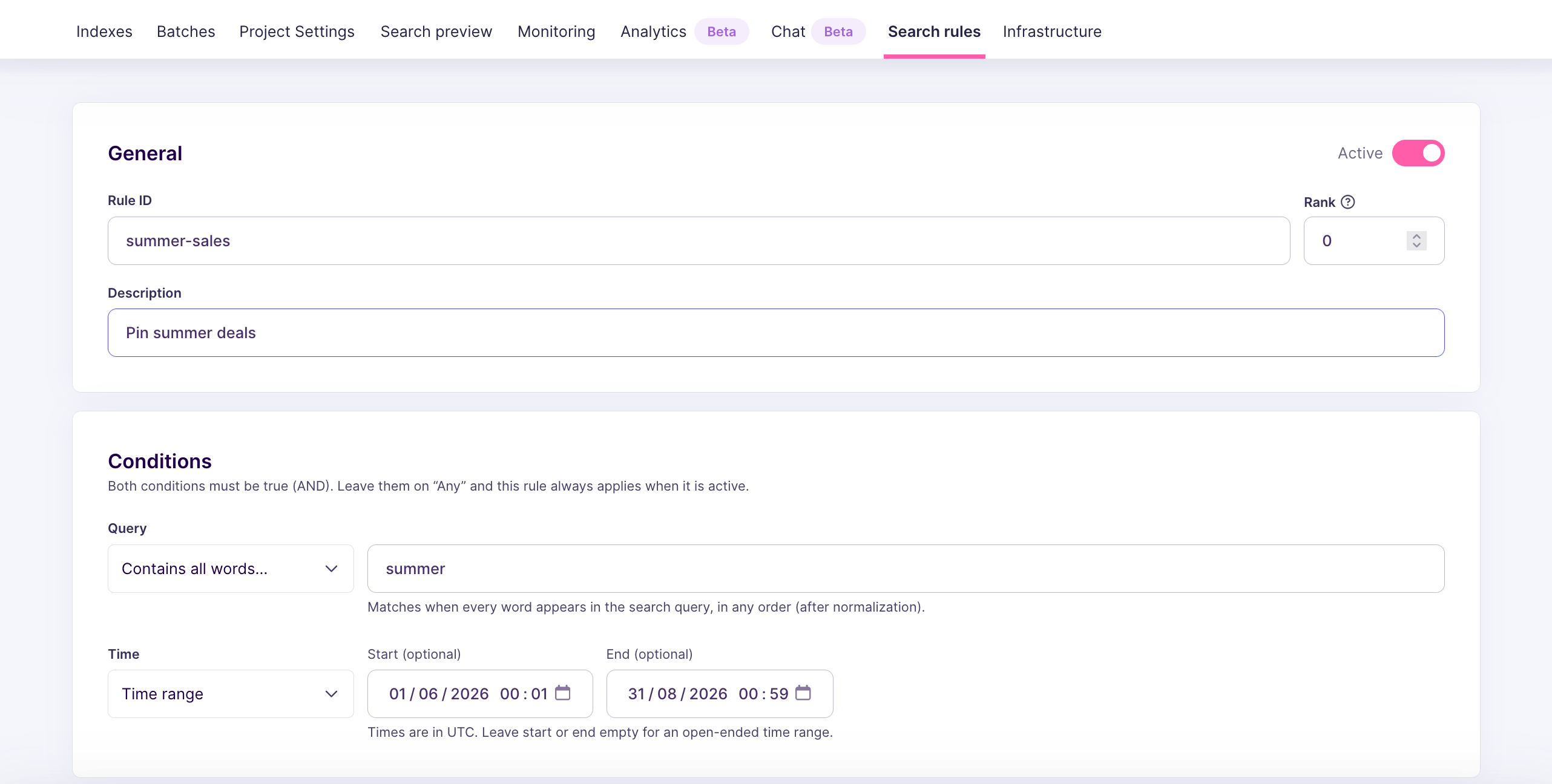
Click New rule. Give it a Rule ID such assummer-sale-2026, add a description noting the campaign dates, and keep the Active toggle on. You can leave Rank at 0 unless another rule competes for the same query.
2. Add the query condition
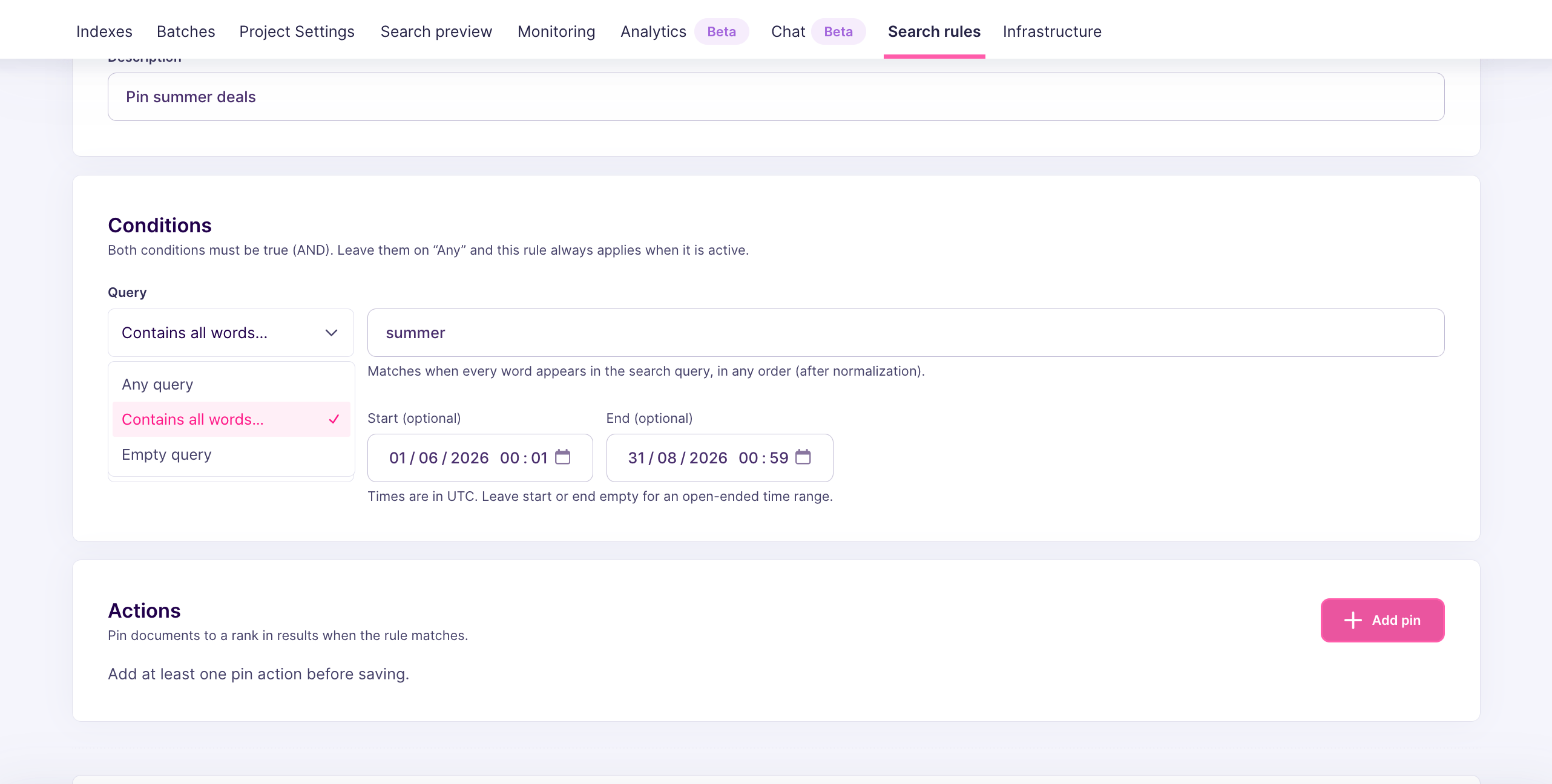
In the Conditions block, select the combo box belowQuery, and pick Contains all words.... Enter summer sale in the nearby field.
Because contains is a word match, the rule also fires for “Summer Sale”, “SUMMER SALE discount”, and “buy during the summer sale”. It does not fire for “summer” or “sale” on their own.
3. Add the time condition
In the Conditions block, select the combo box belowTime and pick the Time Range option. Enter the start and end date and times in the nearby fields.
- Start:
2026-06-01T00:00:00Z - End:
2026-06-30T23:59:59Z
2026-06-01T00:00:00-04:00 in New York becomes 2026-06-01T04:00:00Z in UTC).
The Conditions block now shows two entries. Both conditions are combined with AND, so the rule only fires when the query matches and the current time is inside the specified window.
4. Pin the campaign page
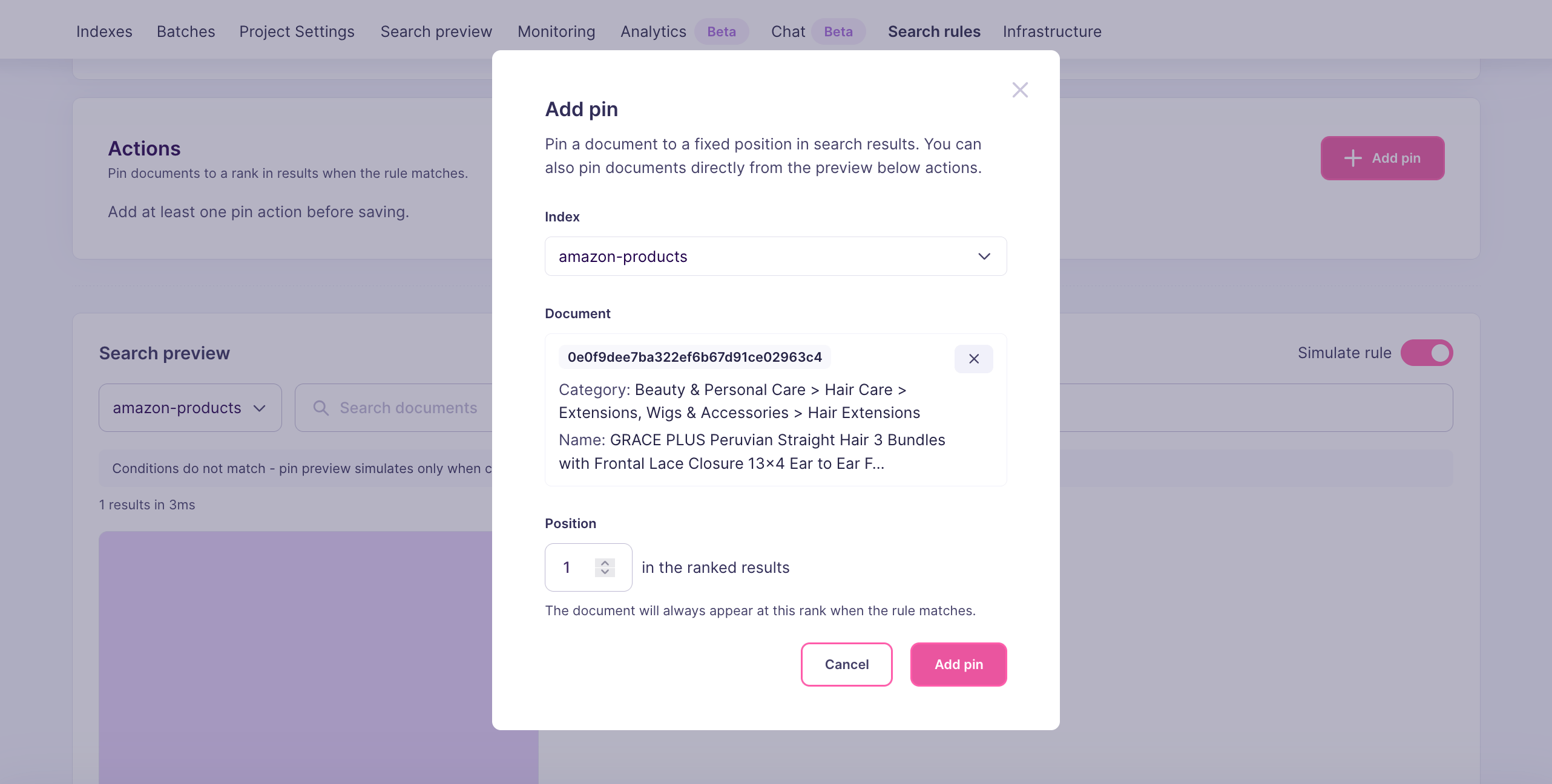
In the Actions block, click Add pin:- Index:
products - Document:
summer-sale-landing-page - Position:
0
5. Save the rule
Click Create rule. The rule now appears in the Search rules list. Before June 1 and after June 30, the rule still exists but stays silent because the time condition never matches.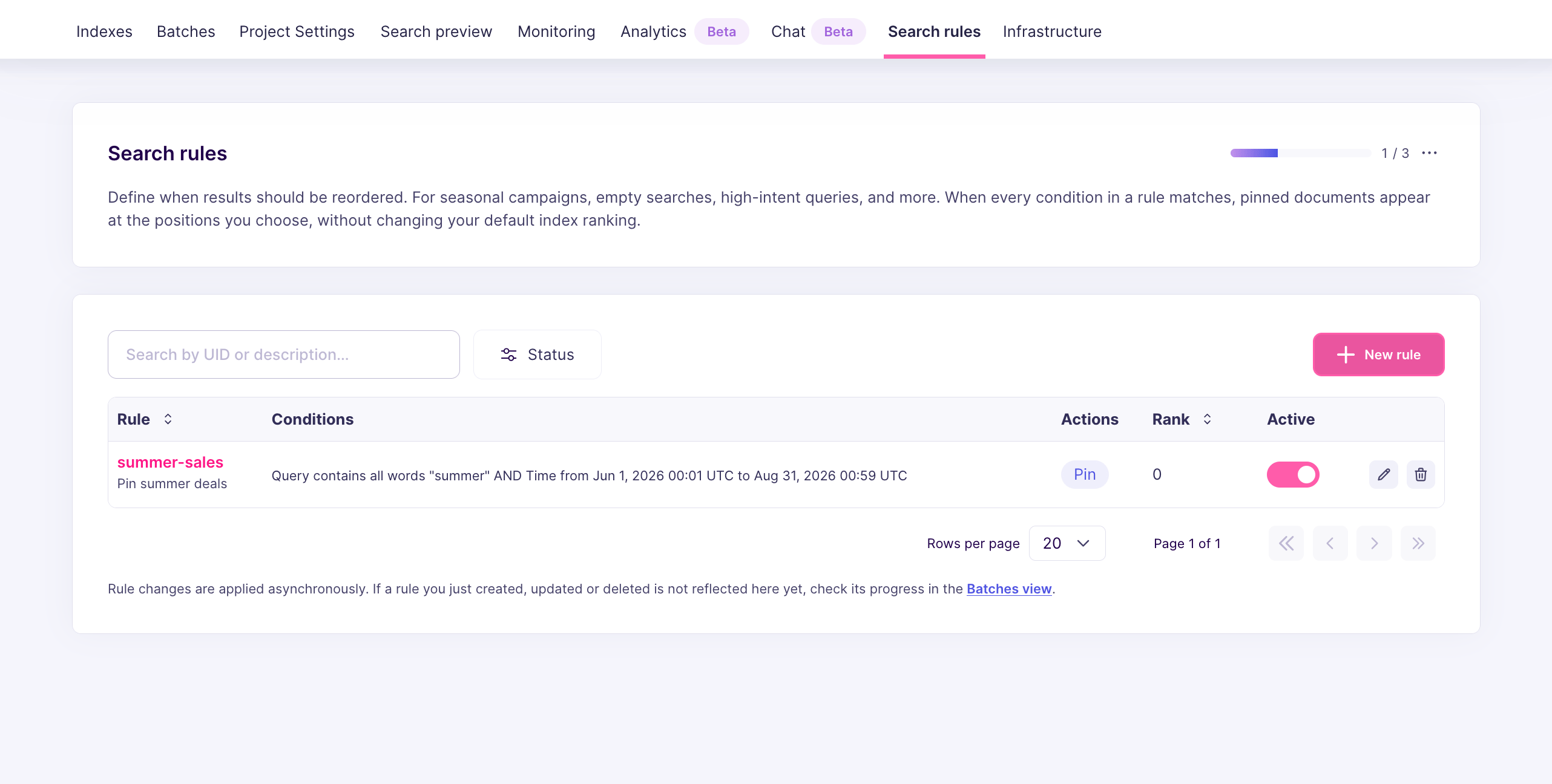
Set up from the API
Send aPATCH /dynamic-search-rules/summer-sale-2026:
timetakes astartand anendtimestamp in RFC 3339 UTC format.- You can omit either
startorendto create an open-ended window. For example, a rule with onlyendexpires at that date but applies immediately. A rule with onlystartactivates at that date and never expires until you remove it. - Multiple conditions are combined with
AND. You cannot express “this query between these dates OR that query between other dates” in a single rule, create two rules with differentuidvalues instead.
How Meilisearch evaluates the rule
On every search request, Meilisearch:- Reads the current UTC time from the server
- Checks each active rule. For a rule with a time condition, it verifies that the current time is between
startandend - If any condition in the rule fails, the rule is skipped for this request
- Otherwise, the rule fires and the pin is inserted
Variations and tips
- Always-on promotions with an expiry safety net: if you want a rule to fire immediately but still auto-expire, set
startin the past (or omit it) andendto the cutoff date. This is a good pattern for time-limited editorial pushes that you want to guarantee will disappear. - Overlapping campaigns: if two rules target similar queries during overlapping windows, set different
precedencevalues so the winner is deterministic. Lower numbers win. - Timezones and daylight saving: always convert to UTC. Relying on local time in the stored timestamps causes subtle bugs across daylight-saving transitions.
- Deleting versus pausing versus expiring: you can let the time window expire naturally (simplest), flip
activetofalseto stop it early without deleting (see Pause a rule), orDELETEthe rule entirely if you never want to reuse it. - Auditing upcoming promotions: use
POST /dynamic-search-rulesto find every scheduled rule before a campaign starts. See List or filter existing rules.
Next steps
Pin one result for a query
Build a rule without a time window
List or filter existing rules
Review the rules that will fire or expire soon
Pause a rule
Stop a rule early without deleting it
Pinning behavior
Learn how pins interact with ranking, filters, and precedence
API reference
Full request and response shapes